
Connecting to the New File Server
Overview
The new company file server is available at:
\\eagletunisia.local\dataSign in with your usual company (domain) account. This guide explains how the folders are organised and how to connect from Windows and Linux.
Folder structure
|
Folder |
What it is for |
Who can access it |
|---|---|---|
|
Division |
The main working area of the company, organised by department (e.g. BIM, AI, …). Store your day-to-day project files here. |
Staff of each division |
|
Management |
Reserved for HR and management functions. |
Restricted to authorised people only |
|
Public |
A common exchange area for sharing files between colleagues. |
Open to everyone |
If you get "Access denied" on Management, that is expected unless you have been granted access.
Windows
- Open File Explorer (press
Win + E). - Click the address bar, type
\\eagletunisia.local\dataand press Enter. - If prompted, sign in with your company account (e.g.
username) - The three folders Division, Management and Public will appear.
Optional – map it as a network drive so it always appears under This PC:
- In File Explorer, right-click This PC → Map network drive…
- Choose a drive letter (
S:). - Folder:
\\eagletunisia.local\data - Tick Reconnect at sign-in and click Finish.
Linux
On Linux you simply mount the SMB share.
File manager (GNOME Files, Dolphin, etc.)
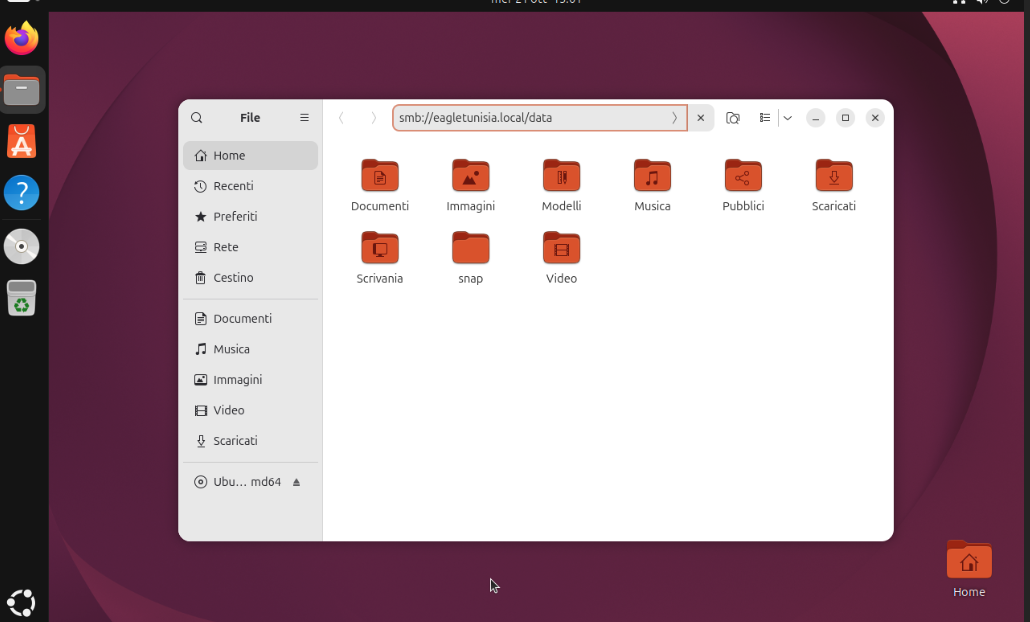
- Open the file manager and go to Other Locations (or press
Ctrl + L). - In Connect to Server enter:
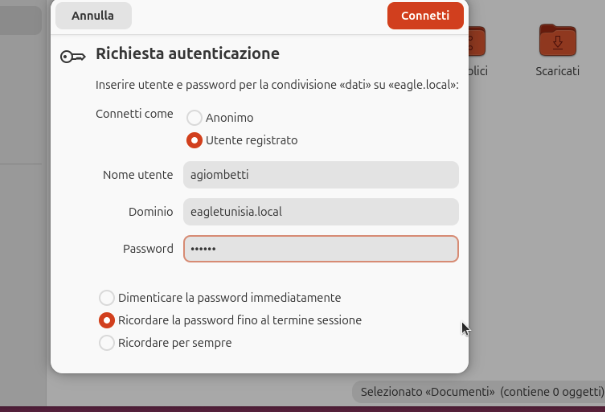
smb://eagletunisia.local/data - Choose Registered user, enter your company username, domain
eagletunisia.localand password.
Troubleshooting
- Server not found – make sure you are connected to the company network (or VPN if working remotely).
- Wrong password / login loop – double-check your username and domain; on Windows you can clear old credentials in Credential Manager.
- Access denied – you may not have permission for that folder. Contact IT if you think you should.
For any other issue, contact the IT support at helpdesk@eagleprojects.it