
Usage
Once you are logged in you should see in the homepage all the services (somethings like this)
Basic users have read only access to the above functions.
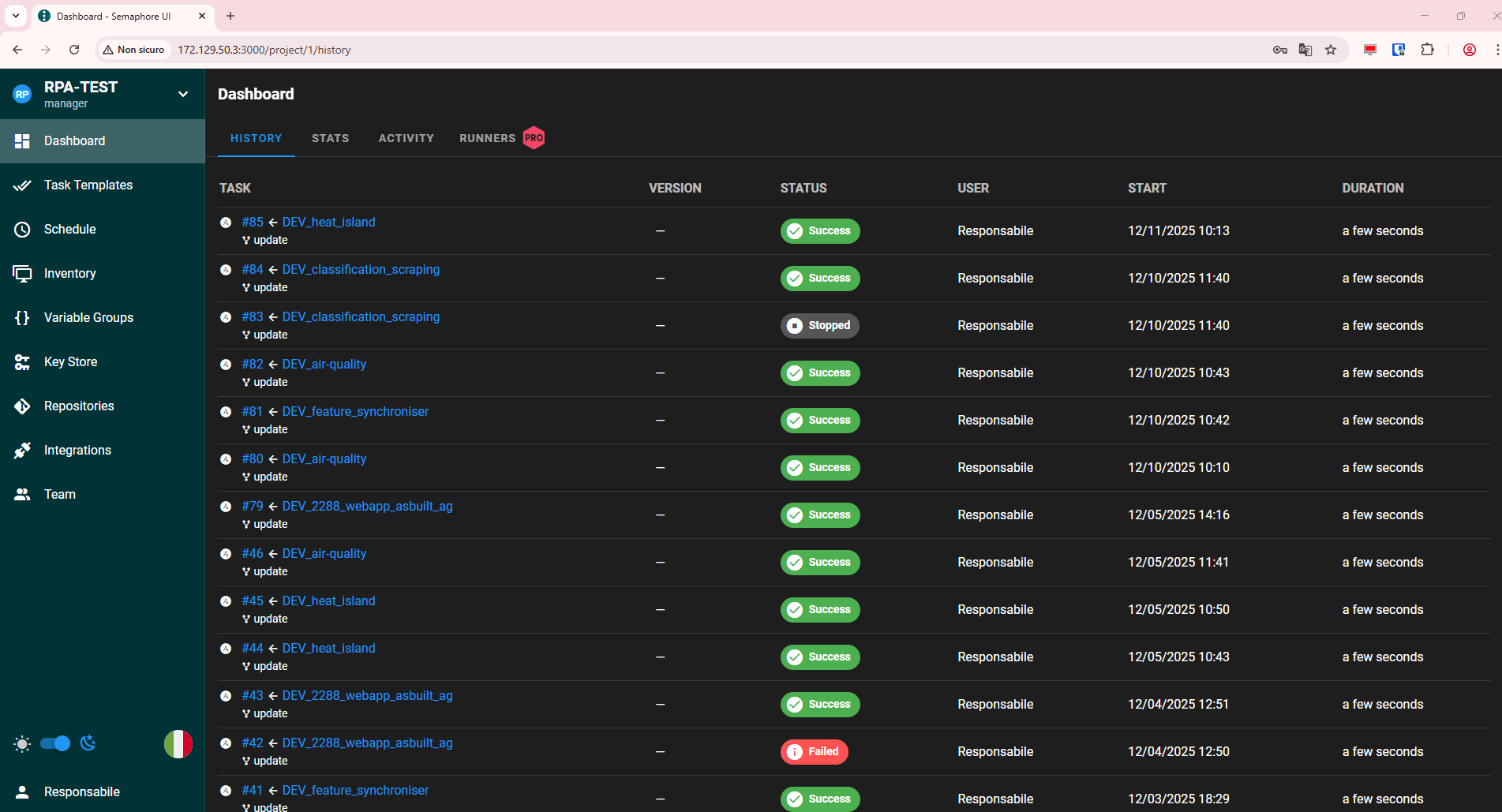
Dashboard
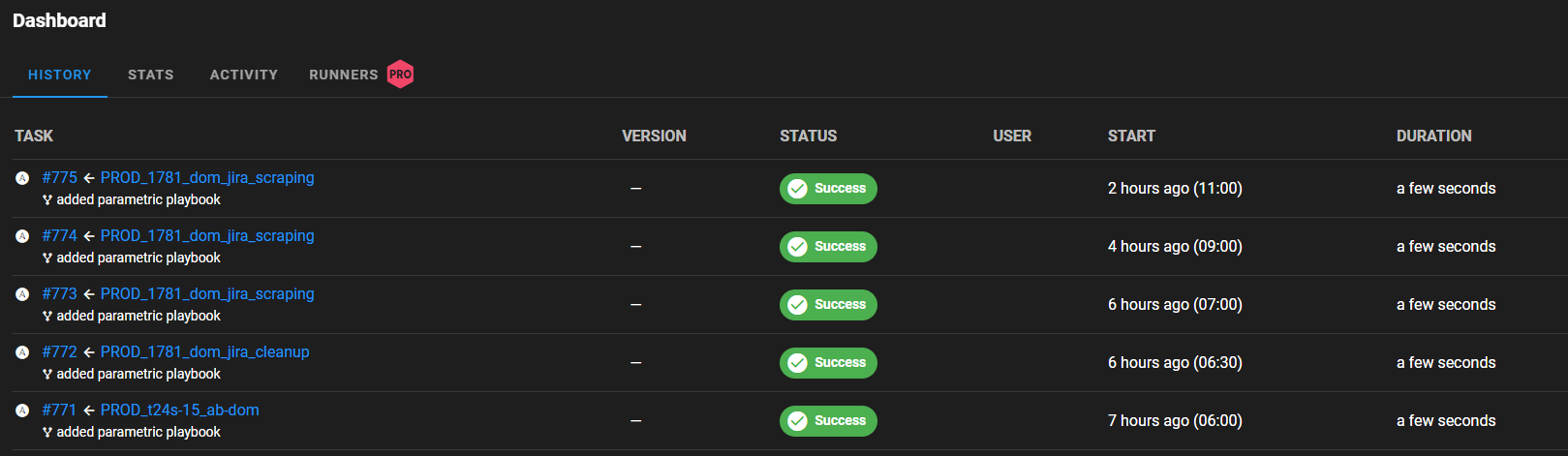
Here we have a list of run of different task that have been executed in chronological order with their status and time.
Task Template
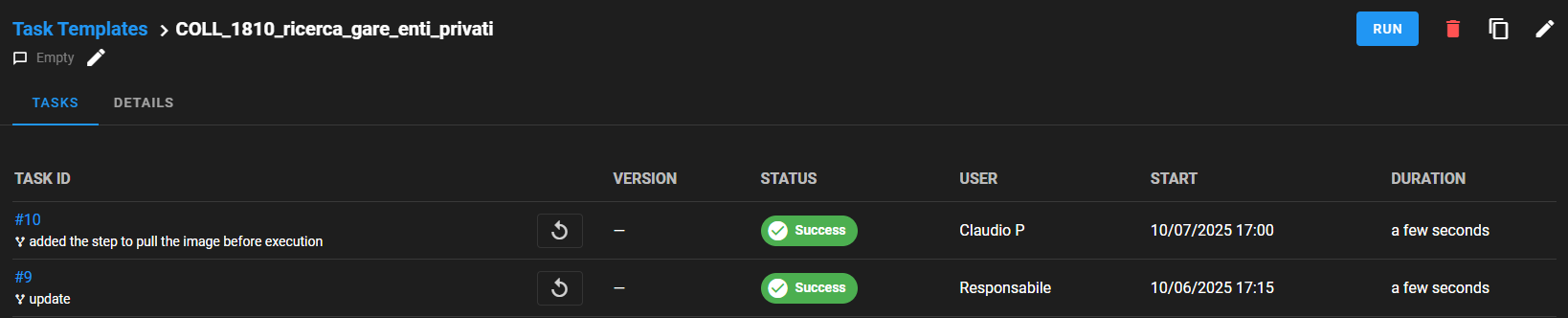
This section contain the set of tasks (Task templates) which is where the task are defined.
By selecting one task template you can:
- see task execution history ( and check every task's logs)
- edit task params
- duplicate task template (useful for new task creation)
- delete task template
Schedule
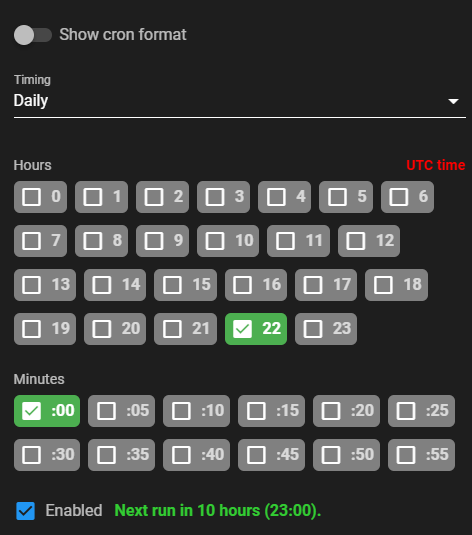
Here are managed the schedules for task template. The time schedule format is cron (there's a UI that help you choose your schedule time).
You can:
- Activate/deactivate existing schedule
- Create a new schedule
- Edit an existing schedule
- Delete an existing schedule
Inventory
This section MUST BE read only for us. It's managed by DevOps team. We can just check the yaml to see hosts' name (for ex. the VM we need to run the tasks on).
Variable Groups
Here are listed the variable for each task. Basically we have to type of variable group:
- Basic: the most used. It allow to define compose path and hosts. Which are mandatory to start an all-in-one specific service. It's used when we need to start (or restart) all the services of a released compose.
- Parametric: It's more rare, and we use it when we want to start a specific service of a compose. We define the same two param as Basic one, and add a service_name variable which allow us to specify the service name in released compose that we want to start (or restart).
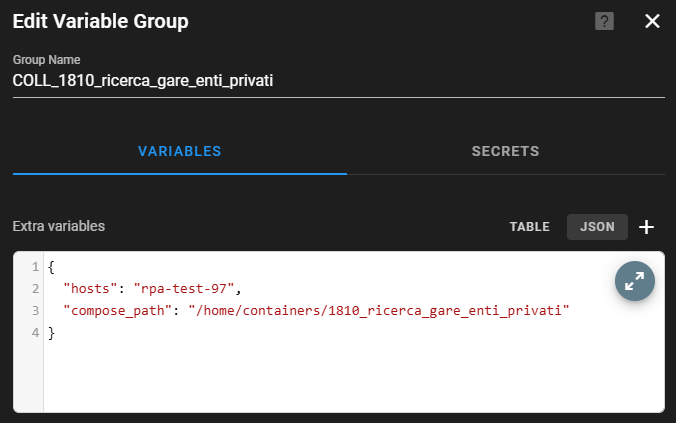
Other sections
We got also Key Store, Repositories, Integrations and Team which are not daily used from our side, so there's no need of explanations, in case ask DevOps team.
How to add a new task and schedule it
After a service release, we should add it to it's relative ansible instance. Even if it is a webapp service, because if we need, we can restart it as we want.
These are the steps to follow:
- Variable group: create a new variable group with "NEW GROUP" button (hint: you can copy an existing group by opening
it andit, switch to json format,thiscopy and paste in a new one; This allow you to just edit compose path and host if needed). I suggest to use the naming convention actually used: ENV_SERVICE_NAME (ex, COLL_408_ricerca_gare). If you don't know exactly the compose path you can ask devops to have a check in thevmvm; - Task template: you can create a new task by clicking "NEW TEMPLATE" -> "Ansible Playbook". (hint: instead of define a new task each time, you can copy an existing one by opening it and click the button between red bin and pencil, after that you can just edit name and variable group). Important params are name, playbook file (there are two type, "collaudo/docker-up-d.yaml" for all-in-one service and "collaudo/docker-up-d-param.yaml" for executing a specific service) and variable group. Inventory and repository are mandatory, but have only one choose.
- Schedule: If needed you can define a schedule for your task. In schedule section click "NEW SCHEDULE". Insert a name (using naming convention as variable group), select a defined task template, choose schedule time, in UTC timezone (remember to select minute or the task will be executed every minute of the selected hour!) and activate it.