
Configuration
Ansible Access – Operational Guide
Overview
Each infrastructure (Cloud and Headquarter) has its own Ansible instance, separated by development stage:
-
dev -
test -
prod
Each environment in Cloud is fully isolated and requires dedicated access.
Headquarter can connect to all stages.
Requirements
To access Ansible, all of the following prerequisites must be met:
1. Network connection
You must be connected to the target infrastructure network:
-
Headquarters → Sophos VPN
-
Cloud → WireGuard VPN on the following VLANs:
-
26 - DEV
-
27 - PROD
-
28 - TEST
-
2. SSH proxy access
Access to Ansible is performed through an SSH proxy, which requires:
-
a valid SSH key
-
prior enablement by the DEVOPS team
If you are not enabled, you must open a request with DEVOPS to obtain access.
Configuration
1. Connect to the SSH proxy
Open a terminal and execute the following command:
ssh -i "path\\to\\your\\enabled_ssh_key.pub" \
    -p 22122 semaphore@<ANSIBLE_VM_IP> \
    -N -D 9090
Important notes:
-
If you have only one SSH key, the
-iparameter can be omitted -
All other parameters are mandatory
-
After execution:
-
the terminal will remain attached
-
no output will be displayed
-
this behavior is expected
-

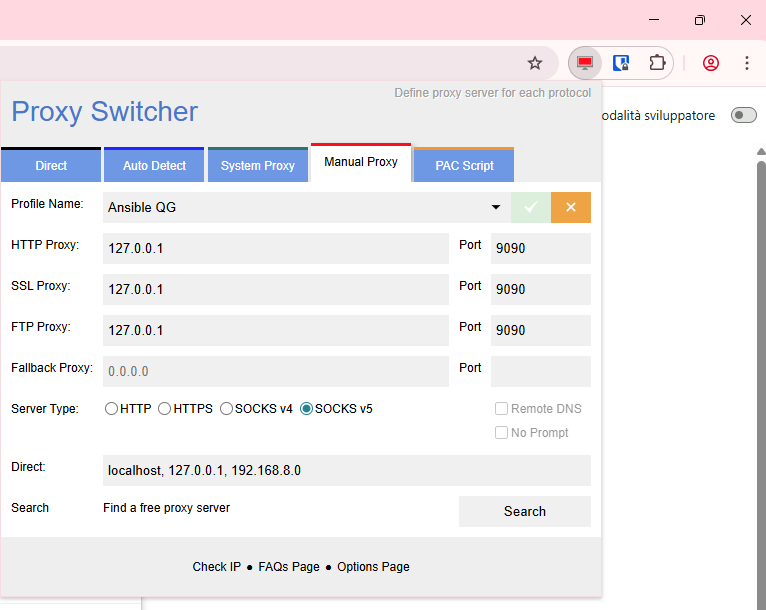
2. Browser configuration
The recommended setup includes:
-
a dedicated browser profile (e.g. a secondary profile in Google Chrome)
-
a browser extension capable of routing HTTP/S traffic through a SOCKS proxy (like this)
The extension must be configured to:
-
forward traffic to:
-
Host:
localhost -
Port:
9090 -
Type: SOCKS
-
3. Access the Ansible login page
Once the setup is complete:
-
Open the configured browser profile
-
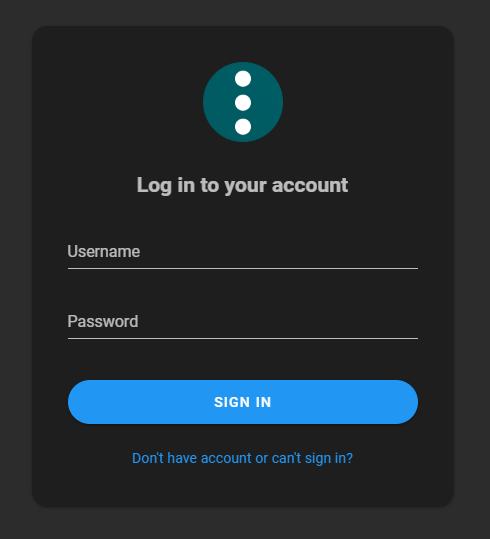
Navigate to the Ansible login page
-
The authentication screen should be displayed
Use the credentials provided by DEVOPS during the enablement request.
Troubleshooting
❌ Cannot connect to the SSH proxy
Possible causes:
-
VPN not connected
-
Development stage VLAN not enabled
-
VPN configuration incorrect
-
Port 9090 already in use by another service

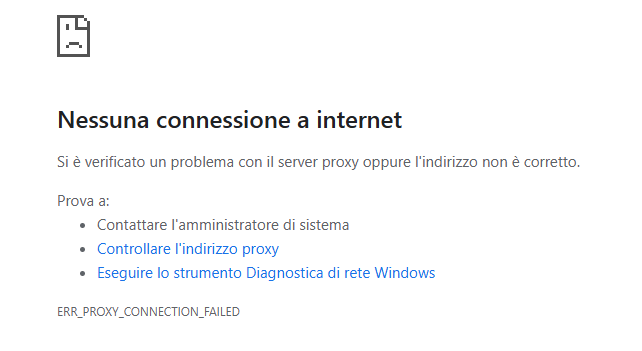
❌ Cannot reach the Ansible login page
Possible causes:
-
Proxy extension not properly configured
-
ensure traffic is routed to
localhost:9090
-
-
Ansible not available
-
this usually indicates the VM is down
-
Also check the terminal where the SSH proxy was started:
-
if the connection is correct, no logs or errors should appear
❌ Login failed
Possible causes:
-
Incorrect credentials
-
Credentials belong to a different environment (dev / test / prod)
Ensure you are using the correct credentials for the intended:
-
infrastructure
-
development stage
Final notes
-
Keep browser profiles separated to avoid proxy conflicts
-
Close the SSH session when it is no longer needed
-
For persistent issues or doubts, contact DEVOPS