
Firts access
User Guide: First Login and MFA Setup on authentik
Follow these simple steps to log in for the first time, set your password, and configure Multi-Factor Authentication (MFA) for your account.
🔑 Step 1: Access the Authentication Portal
-
Go to the authentication portal:
https://login.eagleprojects.cloud -
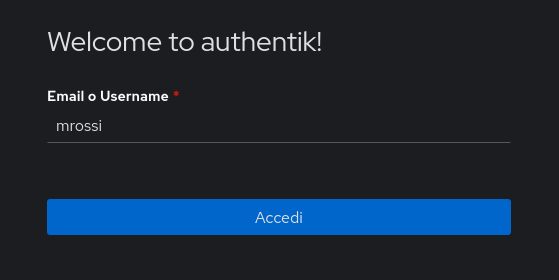
On the login page, enter your username provided by the administrator.
-
Click "Log in".
⚠️ Important: Do not enter a password yet. During your first login, you must reset your password first.
🔄 Step 2: Request a Password Reset
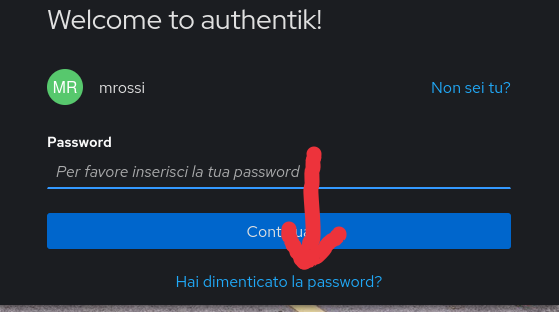
- On the login page, click "Forgot password?".
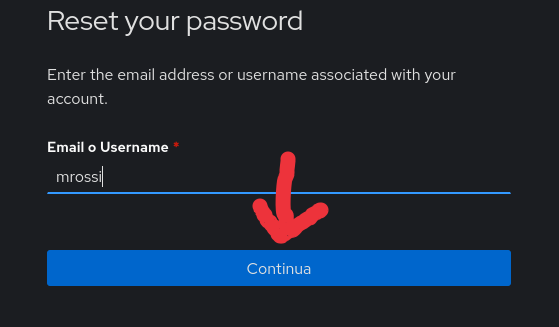
- Enter the email address associated with your account and click "Send reset link".
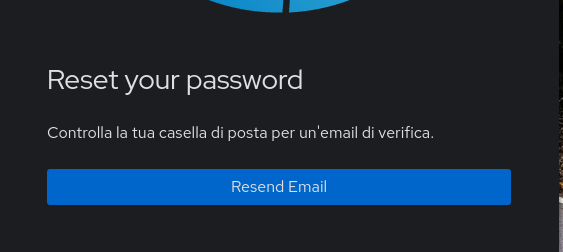
✉️ Note: You will receive an email containing a link to reset your password. If you cannot find it, check your Spam/Junk folder as well. The email may take up to approximately 2 minutes to arrive.
🔐 Step 3: Create a Good Password
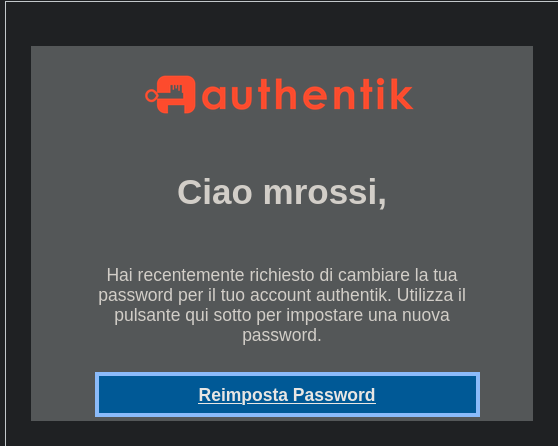
- Open the password reset email and click "Reset Password".
-
You will be redirected to the password reset page. Enter:
- New password
- Confirm password
-
Click "Save".
How to create a good password
A good password should primarily be long and easy for you to remember. It does not necessarily need to be difficult to type or made of a random sequence of characters.
We recommend using a password of at least 20 characters.
A good approach is to use a passphrase: several unrelated or memorable words combined into a sentence.
For example:
I rellay like IPA beer
This password is long, easy to remember, and much easier to type than something like:
X7&kP!2zQ9#Lm4
The most important principles are:
- Use at least 20 characters.
- Prefer a long passphrase that is easy for you to remember.
- Do not use personal information that other people could easily guess.
- Do not reuse the same password for multiple services.
- Do not use the example password shown in this guide as your actual password.
💡 Remember: password length is generally more important than making a password unnecessarily complicated.
🔐 Step 4: Configure Two-Factor Authentication (MFA)
To improve the security of your account, you must configure Two-Factor Authentication (2FA/MFA).
The authentication method used in this guide is TOTP (Time-based One-Time Password) with the Ente Auth application.
Ente Auth generates a temporary 6-digit code that changes periodically. After MFA has been configured, this code will be required in addition to your password when logging in.
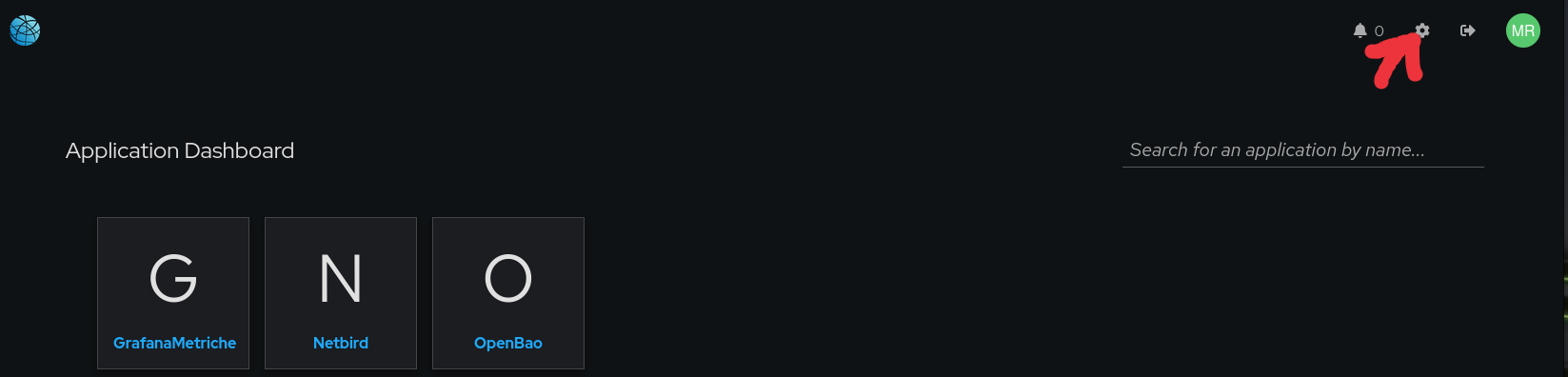
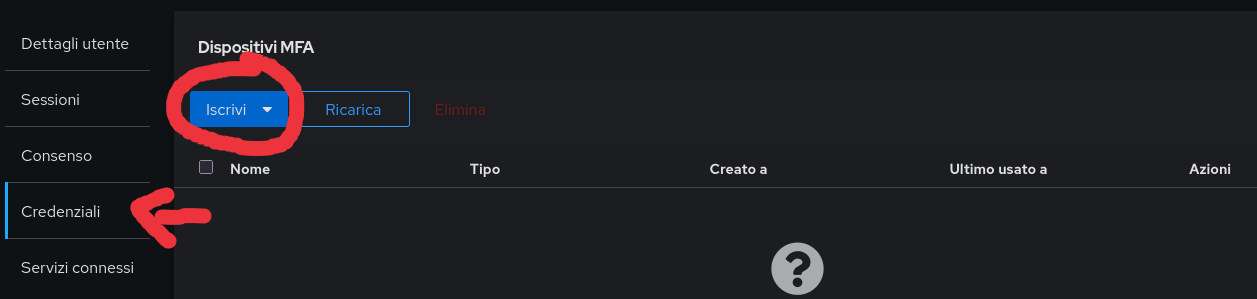
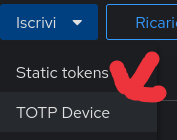
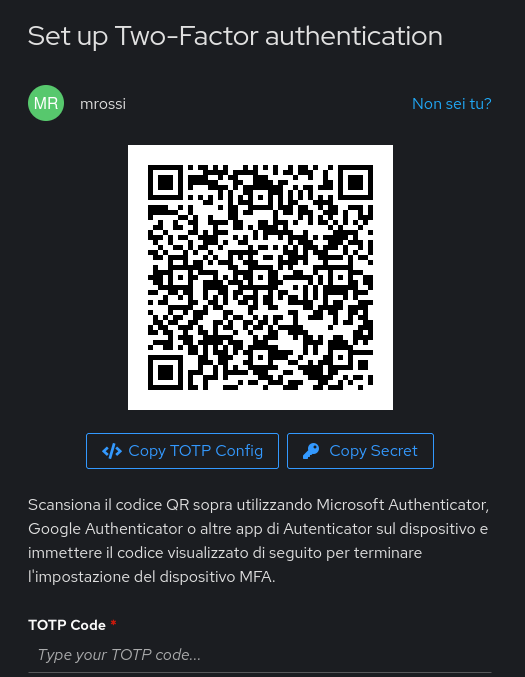
📌 Configure Ente Auth
-
Install and open the Ente Auth application on your smartphone.
-
During the authentik MFA configuration process, a QR code will be displayed on the screen.
-
In Ente Auth, add a new authentication account and scan the QR code displayed by authentik.
-
Ente Auth will automatically create an entry for your authentik account and start generating 6-digit verification codes.
-
Enter the current 6-digit code generated by Ente Auth into the verification code field in authentik.
-
Click "Verify", "Continue", or the equivalent confirmation button shown on the page.
✅ Done! Your MFA configuration is complete.
From now on, when logging in, you will normally be asked to provide:
Username → Password → 6-digit MFA code from Ente Auth
⚠️ Common Problems and Solutions
| Problem | Solution |
|---|---|
| I did not receive the password reset email | Check your Spam/Junk folder. If necessary, request a new password reset. The email may take approximately 2 minutes to arrive. |
| My password is too short | Use a password of at least 20 characters. Prefer a long, memorable passphrase. |
| The QR code cannot be scanned | Increase the QR code size or use the manual secret/key option if available. |
| Ente Auth does not generate a code | Make sure the account was correctly added to Ente Auth. |
| The MFA code is rejected | Make sure the date and time on your smartphone are set automatically and correctly synchronized. |
| I changed or lost my smartphone | Contact the administrator if you no longer have access to your configured MFA method. |
No comments to display
No comments to display